Blog How to rebuild a lost WordPress site without losing Google traffic
How to rebuild a lost WordPress site without losing Google traffic
A WordPress site vanished with no backup. Here is how we rebuilt it from its public data and kept all 359 addresses Google had indexed.
By twikkPublished 4 min read
Contents
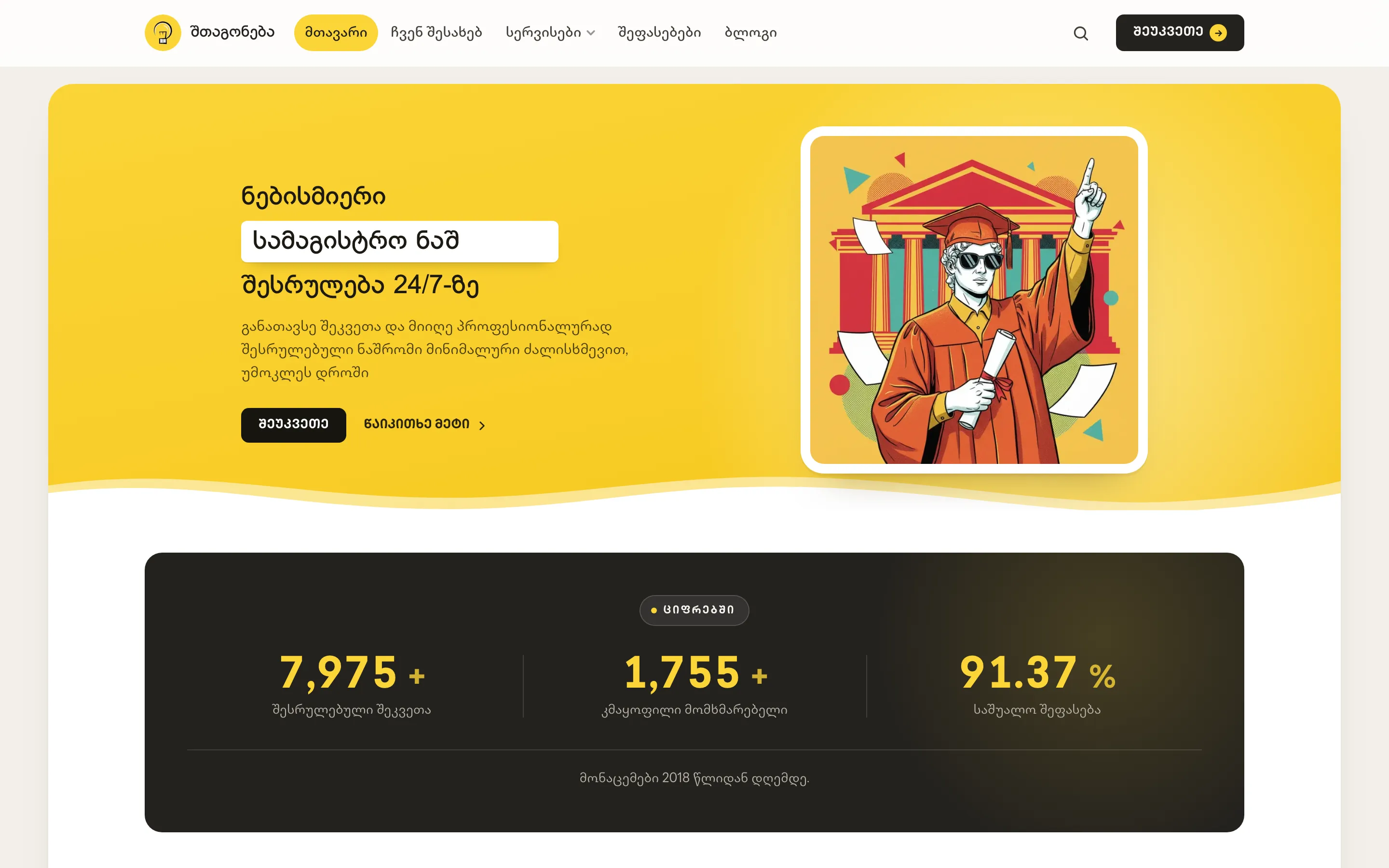
In 2026, the WordPress install behind shtagoneba.ge was gone. No database, no theme, no plugins, no backup, and nothing in the Wayback Machine. Google, meanwhile, still had 359 of its addresses indexed, and those pages had earned 63,463 clicks over the previous 16 months.
We rebuilt the site and kept every one of those addresses working. This is how, step by step, in case it happens to you.
1. Find out what survived
Before you rebuild anything, collect every copy of the site that still exists anywhere. Places to look:
- The WordPress REST API. If any part of the site still answers,
/wp-json/wp/v2/postsreturns every published post as JSON, with its body, slug, dates, categories and images. Download all of it while you can. - Your own downloads and emails. Exports, PDFs, screenshots, newsletters that quoted posts.
- The Wayback Machine at web.archive.org. Google’s own cache is no longer an option; Google retired it in 2024.
- The uploads folder on any old server or CDN, even if the database is gone.
For shtagoneba.ge, the one thing that survived was a dump of the public API: 292 posts, 10 pages, 47 categories, 512 tags and 199 images. That was enough to rebuild the content. It was not enough to rebuild the design, because the pages had been laid out in a page builder (Elementor), and page-builder layouts don’t survive as clean markup.
2. Get the list of addresses Google knows
This is the step most rebuilds skip, and it’s the one that decides whether you keep your traffic.
In Google Search Console, open Performance, set the date range as far back as it goes, and export the Pages table. That gives you every address that received clicks, and how many. Also export the indexed pages from the Pages report under Indexing.
That list is your contract. Every address on it must either work exactly as before, or redirect permanently (a 301) to the page that replaced it. For shtagoneba.ge, the export covered February 2025 to May 2026: 359 addresses, 63,463 clicks.
3. Match every old address
Go through the list line by line and decide, for each address, whether the new site serves it directly or redirects it.
- Serve it directly whenever you can. Same address, same content.
- Redirect only what can’t come back as it was, such as a page you are merging into another one.
In our case, 340 addresses are served directly and 19 go through redirects. None are missing.
Watch for the details WordPress adds to addresses, because Google indexed them exactly as they were:
- Trailing slashes. WordPress serves
/post-name/, with the slash. Keep it. - Non-English slugs. Georgian, Russian or Greek slugs are stored percent-encoded. The new site has to answer the same encoded address.
- Truncated slugs. WordPress cuts long slugs at 200 bytes, and in Georgian that can stop mid-word. The truncated form is the one Google has, so keep it, odd as it looks.
- Pagination. Category and blog pages live at
/page/2/,/page/3/and so on. Keep the same number of posts per page so those addresses still show what they showed before.
4. Restore the content word for word
Don’t rewrite the posts while you’re rebuilding. Google ranked the text that was there, so put that text back.
On shtagoneba.ge, every post body is the original HTML from the API dump, unchanged. The ten pages built in Elementor had to be laid out again by hand, but their text was lifted word for word from the archive.
Some things will be gone for good. For 108 posts, the cover images had never been saved anywhere. We made new covers in the site’s own illustration style, so the articles didn’t go out bare.
5. Rebuild it so it can’t vanish again
We rebuilt the site without WordPress, as plain pages generated from the saved content. There’s no database to lose and no plugins to update. Hosting is cheap. The whole site, content included, lives in version control, so every change is a backup.
Plain pages aren’t right for every site. If your team publishes every day through an editor, keep a CMS, but keep a backup outside the server too.
6. Check every address after launch
Before you point the domain at the new site, test every address on your list automatically. Each one should return either a normal page (200) or one permanent redirect (301) to a page that returns 200. Watch for redirect chains, and for redirects to the home page, which Google treats like a missing page.
After launch:
- Submit the new sitemap in Search Console.
- Watch the Pages report for the next few weeks. New “Not found (404)” entries mean an address slipped through.
- Compare clicks per page with your export. A page that drops to zero needs checking first.
The short version
- Save everything that still exists, starting with
/wp-json/. - Export every address Google knows from Search Console.
- Serve each address directly, or redirect it with a 301. Leave none out.
- Put the original text back, unchanged.
- Rebuild so the site is files you can back up.
- Test every address before and after launch.
Need something like this?
Start with a twenty‑minute call. Tell us what is slow, broken or missing.
Get in touchThe project behind this
Website rescue · 2026shtagoneba.geA WordPress site that was lost with no backup, rebuilt from a data export with every Google-indexed page still working.